The following instructions apply to version 3.0.0 or newer.
Simple Image Gallery Pro supports only Joomla versions 1.5, 2.5 & 3.x.
DOWNLOADING
Login to your Member Dashboard and grab the latest release from your "My Subscriptions" page. An active membership is required.
INSTALLATION
There is 1 single file you use to install the extension, which is compatible with Joomla 1.5 to 3.x. After you download this zip file, upload and install the plugin by using the Joomla installer. Navigate to:
- Extensions >> Install/Uninstall (for Joomla 1.5)
- Extensions >> Extension Manager (for Joomla 2.5 to 3.x)
...to install the extension.
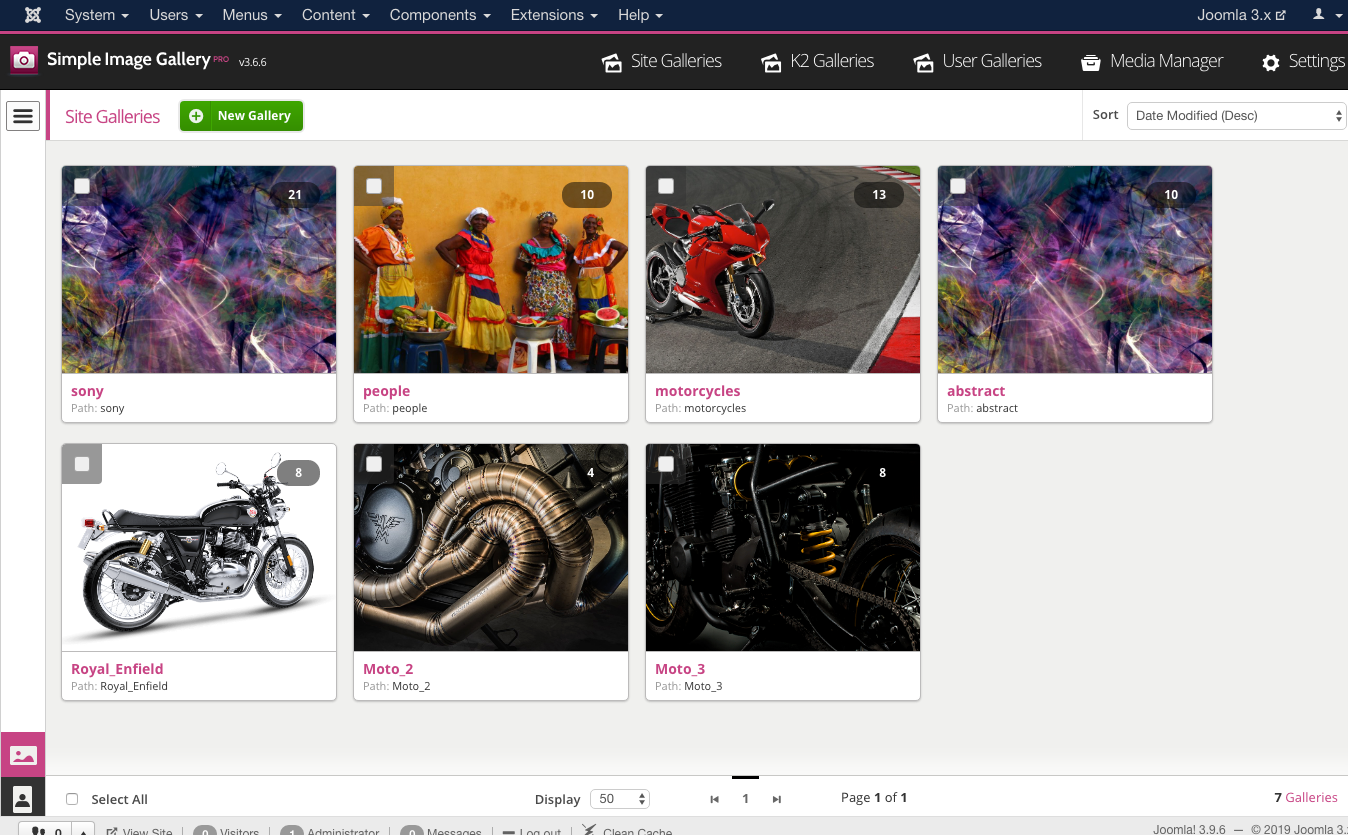
Finally, navigate to Components >> Simple Image Gallery Pro (all Joomla versions) to start editing your image galleries.
UPGRADING
Simply upload any newer version on top of the previous one you have installed on your site. The process is the same as installing the extension for the first time (as mentioned above). All your settings will be retained and any new features will be added automatically.
REQUIREMENTS
In order for Simple Image Gallery PRO to function properly, please make sure that you are running at least PHP 4 and that PHP's GD image library is installed on your server (common webhosts have GD installed by default). For the Flickr integration, PHP5 is required.
You also have to make sure that Joomla's /cache folder is writable, in other words, check that the permissions for this folder are 755 or 777. If the plugin cannot generate the thumbnails due to bad permissions, you will see a related notification.
HOW DOES IT WORK?
The concept is simple. You want to add image galleries inside your articles (content items)! First set the "Root folder" of all galleries in the extension's settings. By default it's the "images" folder ("image/stories" for Joomla 1.5 only). Now use the Simple Image Gallery Pro component (in the Joomla backend) to create a new gallery folder and in there start uploading images. You can optionally edit the image captions. Follow the same process to batch create your image galleries.
When you are ready to upload one of your image galleries, simply go into the Joomla article manager (or the K2 item manager, or the Virtuemart/redShop product manager etc.), locate the article/item/product you wish to add an image gallery into, place your mouse cursor where you want the image gallery to appear to inside your content (in the WYSIWYG editor) and then click on the editor plugin that reads "Simple Image Gallery Pro" at the bottom of the Joomla WYSIWYG editor. This button will trigger a lightbox popup which essentially loads the Simple Image Gallery Pro backend component and you can either choose an existing gallery to insert in your content, or you can create a new one.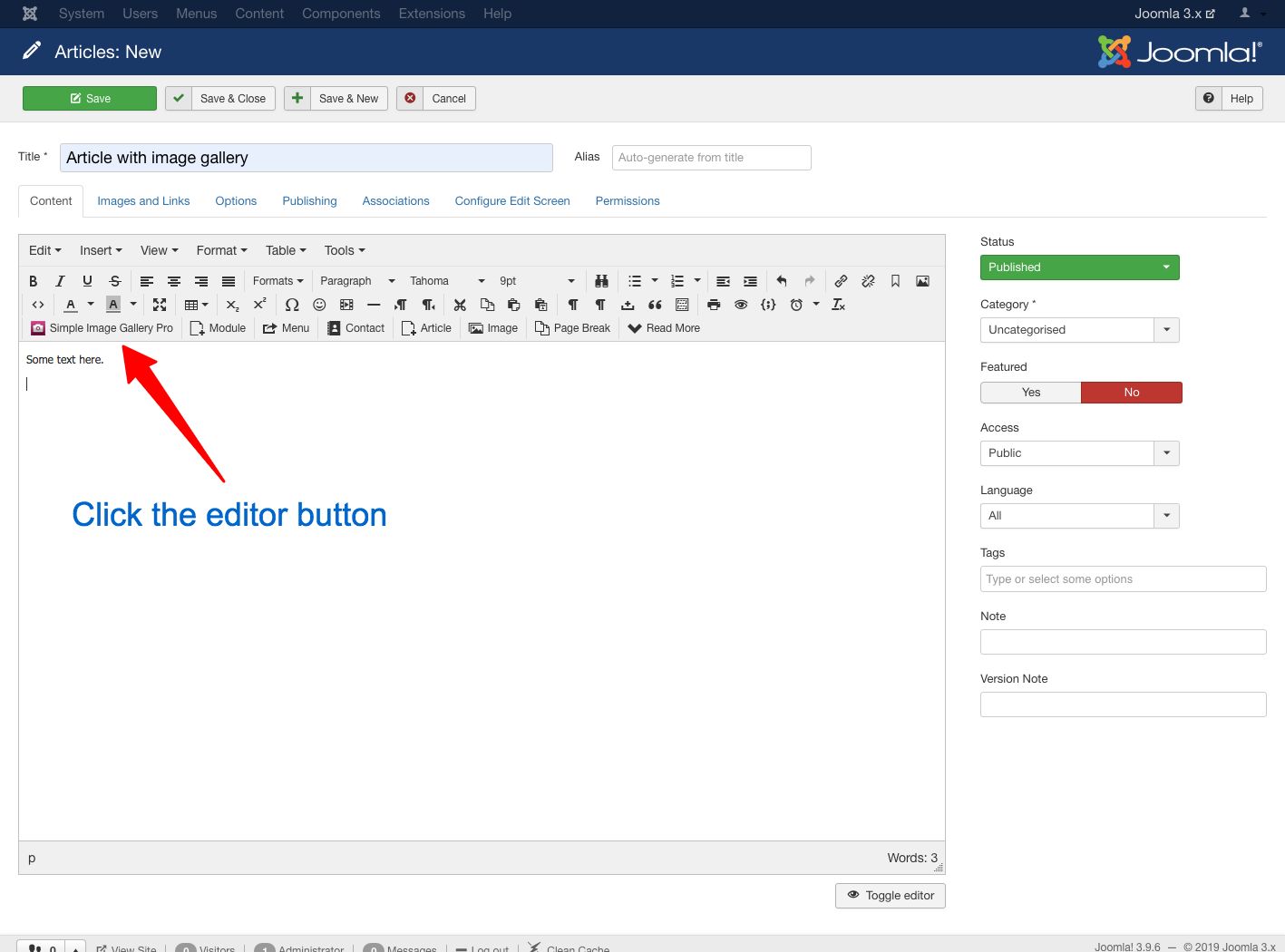
Once you insert an image gallery, you will see a plugin snippet like this: {igallery}summer_trip_to_italy{i/gallery}. This is what instructs Simple Image Gallery Pro to convert to an image gallery in the frontend (in the actual site).
You can have as many galleries as you want inside each content item, since caching takes care of performance. Thumbnails are not generated every time the page with the galleries loads, but after certain intervals, specified in the plugin parameters. The default interval (cache expiration time) is 120 minutes (2 hours). (You can see the thumbnails in your Joomla site's cache manager and you can delete the thumbnails whenever you want so they are instantly re-created upon subsequent page loads by visitors.)
Don't forget to adjust the width and height of the thumbnails. Before inserting an image gallery via the "Simple Image Gallery Pro" editor button, you can adjust these options at the bottom of the lightbox window. Decreasing the width means you are adding more thumbnails in each row of the gallery. So, experiment before going public. Also, set the image quality of the created thumbnails. Low quality means smaller thumbnail sizes and therefore better loading times for your site.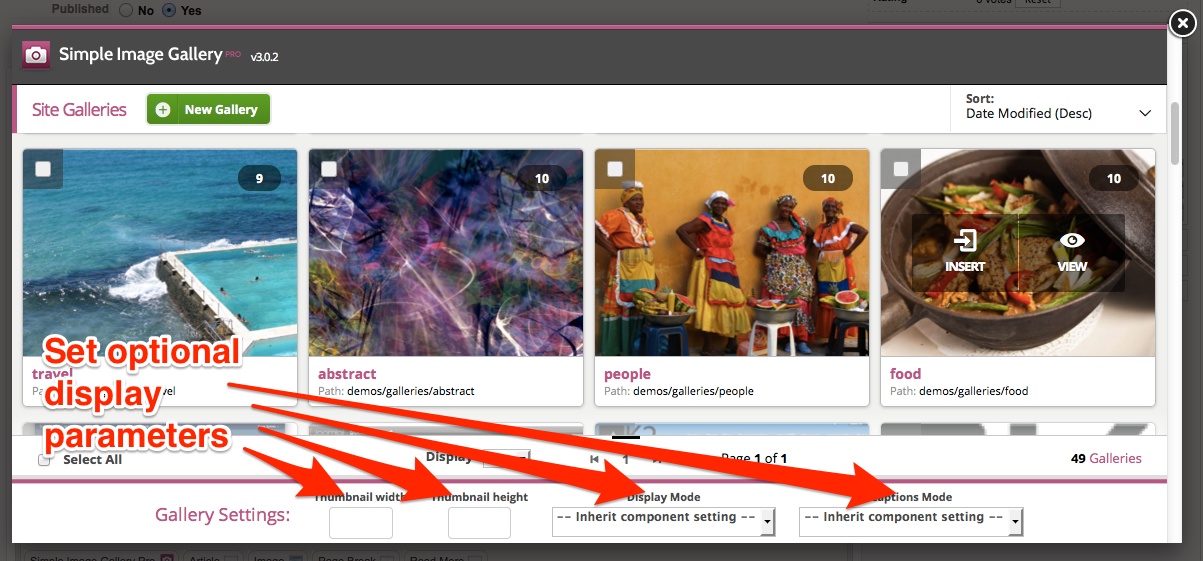
Please note that if you use K2 for your content and more specifically, if you wish to add an image gallery from the related tab in the K2 item form, you can only create, edit and select to use a gallery, but you cannot modify the gallery thumbnails dimensions as you would with galleries inserted from the plugin button. In that case, K2 galleries will inherit the global options configured in the component's settings (in the backend). Of course, you can always still use the plugin button to add galleries within content blocks either in the main content tab in the K2 item form or in WYSIWYG text blocks set in Extra Fields.
For performance issues, prefer not to use over 50 images per content item, otherwise you're just overweighing your pages. The plugin will have no problem handling the conversion, it's just that your users will wait for many thumbnails to load.
Alternatively, you can "switch" to "single thumbnail" display mode and launch your galleries from one thumbnail only! That's right! E.g. you can launch a slideshow of 50 images from a single thumbnail, without overweighing your article page with thumbnail images. The user sees all full-sized images by navigating with the "previous" and "next" buttons within the popup window! This can come handy when you want to display a sequence of images as a presentation.
Flickr Integration: A free API key is required to have Flickr photo set embedding on your site. The process to get an API key is very simple: Sign in to your Flickr account, then visit http://www.flickr.com/services/apps/create/ and choose to get a non-commercial key. Name your app as your website. You can safely use this API key on more than one websites, even on different domains.
Can frontend (registered) users upload image galleries? Frontend registered users are allowed to upload image galleries to their articles (or any other Joomla extension) by using the same process as backend users. When using the editor plugin button, frontend users can upload galleries to an automatically created user gallery folder. This prevents e.g. user "John" from seeing & modifying the galleries upload by user "Jane". Furthermore, they are not allowed to view or modify the image galleries that are uploaded from backend users typically inside the /images folder of a Joomla site. In other words, frontend gallery uploading for registered users is a sandboxed process. They can upload and manage their own galleries only. They cannot manage the galleries created by others. Please note that this "frontend user gallery uploading" feature is different from K2 frontend image gallery uploading (which is already sandboxed as a process too). This feature ONLY applies when using the editor plugin button inside a WYSIWYG editor area to upload a gallery in the frontend.
Old IE browsers and the "Polaroids" gallery layout: It is important to understand that the "Polaroids" gallery layout makes extensive use of CSS3 which is not fully supported by old versions of Internet Explorer (IE). More specifically, for IE version 6 to version 8 we use a graceful degradation approach, so that the gallery is visible and functional. Thus the layout is not identical to how modern browsers like Mozilla Firefox, Google Chrome, Apple Safari, Opera & IE9+ render the gallery. We strongly advise users whose site visitors are mostly coming from old IE versions to possibly use a different gallery layout.
GOING PRO!
Multiple "Popup" Engines
Simple Image Gallery PRO utilizes 10 popup engines for ultimate style and compatibility with various frameworks. Most are based on the jQuery JavaScript library and 2 of them can display the source image in a "responsive" modal box with a touch friendly user interface. Ideal for responsive web sites! 3 popup engines work with "vanilla" JavaScript (they don't require jQuery or any other such library) and most of the popup engines are "slideshow capable". Popup engines utilizing jQuery will download the latest library version minified from the "Google AJAX Libraries API" service, which means faster load times for your website and your gallery. You have full control over how jQuery is loaded. Please note that in Joomla 3.0 or later the extension uses the CMS's built-in copy of jQuery.
Manual Gallery Snippet Setting
"Simple Image Gallery PRO" provides the user the ability to have customized image galleries. For this to happen, you can either use the new user interface (recommended way) or you can directly use the included 6 additional "switches" (additional to the image gallery folder path), which you can use to set different width, height, display mode, caption mode, popup engine and gallery layouut per gallery! That means you can bypass the global settings "Thumbnail viewport width", "Thumbnail viewport height", "Display Mode", "Default caption (label) handling", "Popup engine for image galleries" and "Layout template for image galleries", and have for example image galleries that display thumbnails in different dimensions within the same article.
To do that you need to insert up to 6 (optional) values in the tags used by the plugin. The syntax is the following:
{igallery}folder_path:thumbs_width:thumbs_height:display_mode:caption_mode:popup_engine:gallery_layout{i/gallery}
Watch out for the seperator, which is the character ":".
- "thumbs_width" is the target width in pixels for all thumbnails.
- "thumbs_height" is the target height in pixels for all thumbnails.
- "display_mode" is the mode in which we want our gallery to display. It takes only 2 values, either "0" or "1". "0" means "normal mode" and "1" means "single thumbnail mode".
- "caption_mode" control how captions (labels) are displayed. It takes only 3 values, either "0" (no captions), "1" (caption with generic messages) or "2" (captions coming from labels.txt files).
- "popup_engine" overrides the default popup engine (see our demo site). Values are (alphabetically): highslide, jquery_colorbox, jquery_fancybox, jquery_fresco, jquery_lightview, jquery_magnificpopup, jquery_nivolightbox, jquery_prettyphoto, jquery_slimbox, jquery_swipebox, lytebox, simplebox
- "gallery_layout" overrides the default gallery layout. Values are: Artistic, Classic, Elegant, Galleria, GalleriaWhite, Polaroids, Sleek
The most important ones of course are the first 2 params (after the folder path): width & height
So if for example you want to insert an image gallery in some article with thumbnails displaying in 300px width and 160px height, while keeping the "normal" display mode (showing all thumbs, not just the first one), with caption showing generic messages, you would insert the following tag:
{igallery}folder/some_folder:300:160:0:1{i/gallery}
...which translates to: "create image gallery from the images inside 'folder/some_folder', give them a width of 300px and a height of 160px, do not display them (0) in "single thumbnail" mode and display generic captions (1) for every thumbnail.
If we did want to display the gallery in "single thumbnail" mode, then we would insert:
{igallery}folder/some_folder:300:160:1:1{i/gallery}.
If we wanted to override the popup engine and the gallery layout as well, we could use something like:
{igallery}folder/some_folder:200:80:1:2:jquery_colorbox:Galleria{i/gallery}
Important!
These values are completely optional. This means you can use: {igallery}some_folder:200:160{i/gallery} to adjust dimensions only to thumbs (no change in display mode) or even {igallery}some_folder::160{i/gallery} to adjust just the height (the width value was ommitted). If we wanted to simply switch the gallery to "single thumbnail" mode, then we would just add something like: {igallery}some_folder:::1{i/gallery}. When you don't enter one of the 3 values, it is assumed you are using the global ones. Simple, right?
Flickr Integration
Adding Flickr Sets to Joomla couldn't get any simpler than this. Just the URL of a Flickr set (e.g. http://www.flickr.com/photos/joomlaworks/sets/72157626907305094/) and paste the URL inbetween the plugin's tags like this:
{igallery}http://www.flickr.com/photos/joomlaworks/sets/72157626907305094/{i/gallery}
...and you get probably the simplest and fastest way to embed Flickr Sets in Joomla. Remember to get a Flickr API key first at http://www.flickr.com/services/apps/create/.
For more advanced overrides, all additional values/params as outlined in the previous section are also present for Flickr Set embedding, with the exception of an extra value for the count of images fetched from Flickr. Check this example:
{igallery}http://www.flickr.com/photos/joomlaworks/sets/72157626907305094/:20:200:80:1:2:jquery_colorbox:Galleria{i/gallery}
Notice one additional parameter compared to regular "uploaded" galleries? There is an image counter right after the Flickr URL. So the above example translates to:
{igallery}flickr_URL:flickr_Image_Count:thumbs_width:thumbs_height:display_mode:
caption_mode:popup_engine:gallery_layout{i/gallery}
Individual captions/labels on thumbnails and popup images
"Simple Image Gallery PRO" gives you the ability to easily set individual captions (labels) on popup images. This is a feature many people have asked for, especially photographers and other such professionals, who want to add some comment in their photos and not just have a generic message appearing. Although using EXIF data from JPEG images originally sounded like a nice idea, it soon became obvious to us the trouble in which users would get to add a few captions to their images, as well as the limitations posed (no support for GIF or PNG images). So we decided that a simple text file would do a better job. So how do you add custom captions/labels to your images?
Simply enable the related option "Default caption (label) handling" in the plugin parameters and the required xx-XX.labels.txt file (where xx-XX is your site's default language locale) for each gallery will be automatically generated with some sample text in.
To edit these captions, you can either use the component's backend interface (recommended way) or you can directly edit the captions files. Simply open and edit the xx-XX.labels.txt file of the gallery for which you want to have captions. You can freely use HTML inside the description, just make sure you have one caption per line. After you edit the xx-XX.labels.txt file for a gallery, you would end up with something like:
filename1.jpg|Trip to Italy|You can see us here in piazza di Roma
other_filename.png|caption title|and this is another caption<br />with some HTML <b>in it</b>!
trip_to_canada.gif|caption title|SIG Pro is pretty cool!
As you can easily understand, each caption is broken down to 3 parts:
- the filename (autogenerated from Simple Image Gallery PRO)
- the caption title
- the caption description
Simple Image Gallery Pro plays nice with Joom!Fish too. If you have multiple languages set in your site with Joom!Fish, the plugin will create different xx-XX.labels.txt files, using the available languages. So if your site has English and French available for example, the plugin auto-generates en-GB.labels.txt and fr-FR.labels.txt files.
In versions prior to 2.5 of the plugin, the caption files where only named labels.txt. If you have already built your caption files, you don't need to worry. The plugin can still read labels.txt files, but any new gallery created will make use of the new naming format.
MVC templates: the power to customize the look of your galleries
The feature trully setting apart all our commercial plugins from any other Joomla plugin are their MVC architecture, currently available in Joomla for components and modules only. That means you can use HTML and CSS template overrides inside your Joomla template and completely change the way the plugin elements display on your website!
So you can either choose to use the versatile base styling of the plugin or simply override it (both the HTML and CSS code) by copying the plugin's folder /plugins/content/jw_sigpro/tmpl/SomeGalleryName in Joomla 1.5 or the folder /plugins/content/jw_sigpro/jw_sigpro/tmpl/SomeGalleryName in Joomla 2.5 or newer TO your Joomla template's /templates/YOURJOOMLATEMPLATE/html/jw_sigpro/ folder (create it if it doesn't exist), as you would with components and modules. Whatever changes you do from now on within this folder, will completely override the plugin's output, exactly as you would with any other MVC component or module.
Simple Image Gallery Pro uses 6 base layouts (templates) for rendering galleries, with associated CSS, JS and IMAGES folders. You are able to override all files or selected files, as you would with any other MVC component or module, with the better exception that Simple Image Gallery overrides CSS and JS files as well, as long as you maintain the same names (template.css and behaviour.js).
Putting it all together
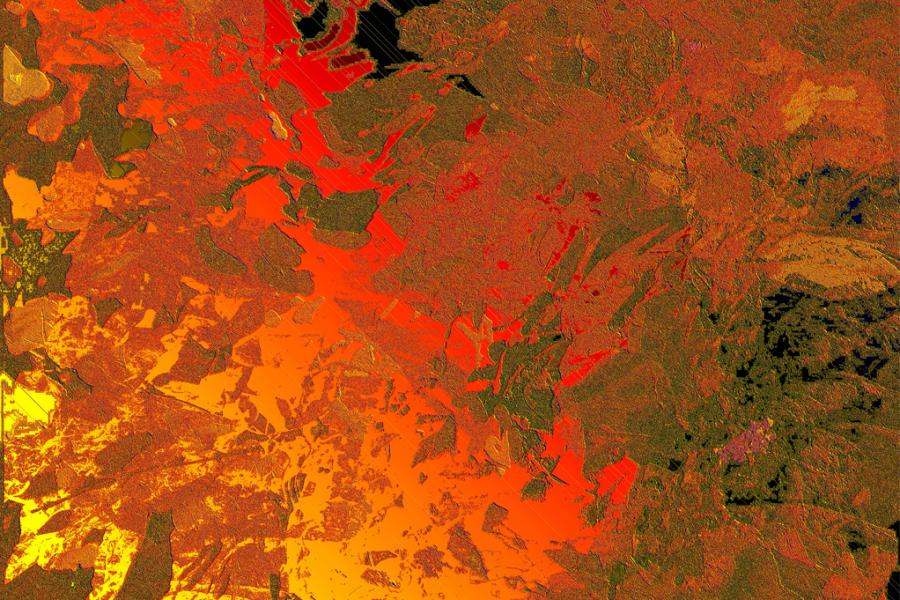
1. This gallery operates using the global plugin parameter settings (thumbnail dimensions set to 200x160, normal mode, generic caption messages). Tag used: {igallery}demos/galleries/abstract{i/gallery}









https://www.joomlaworks.net/support/docs/simple-image-gallery-pro#sigProIdfe6145fe10
2. This gallery has thumbs assigned to 180x100, displaying in normal mode, no caption messages. Tag used: {igallery}demos/galleries/movies2012:180:100:0:0{i/gallery}



























https://www.joomlaworks.net/support/docs/simple-image-gallery-pro#sigProId36aaa233b7
3. This gallery has thumbs assigned to 200x260, displaying in single-thumbnail mode, no caption messages. Tag used: {igallery}demos/galleries/casino_royale:200:260:1:0{i/gallery}

https://www.joomlaworks.net/support/docs/simple-image-gallery-pro#sigProId73e7e854ab
As you can see here, nearby text nicely wraps around the thumbnail.
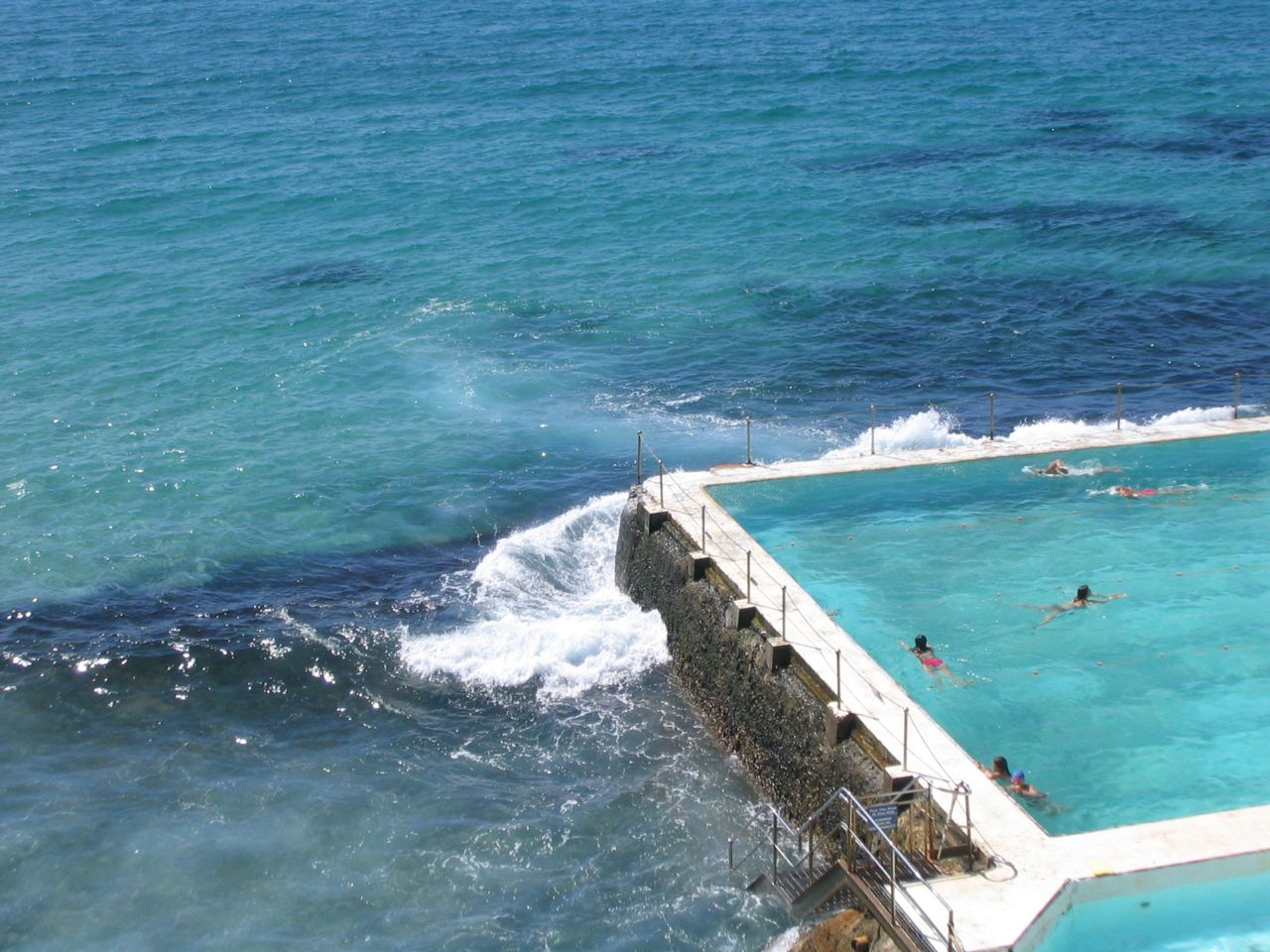
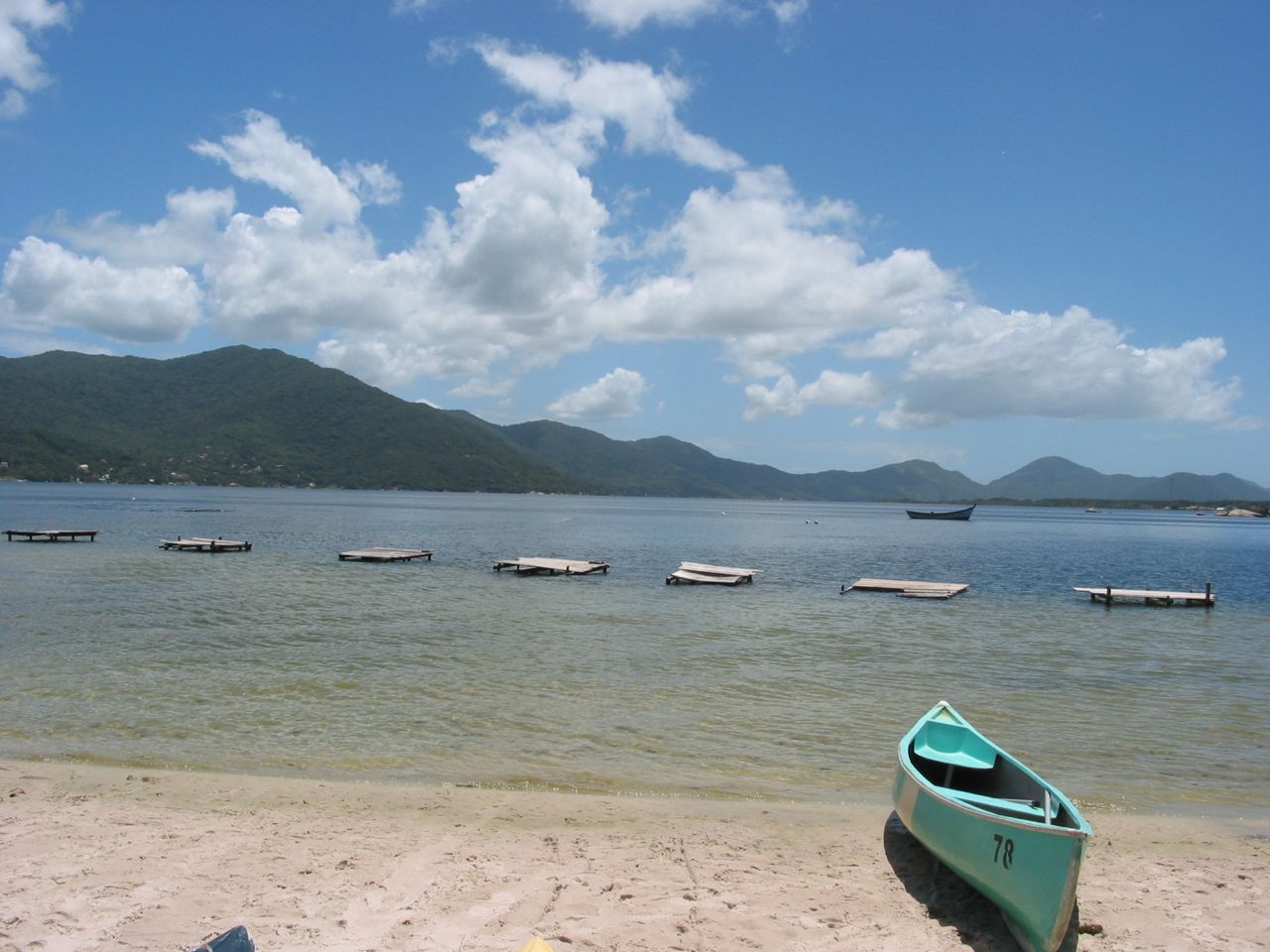
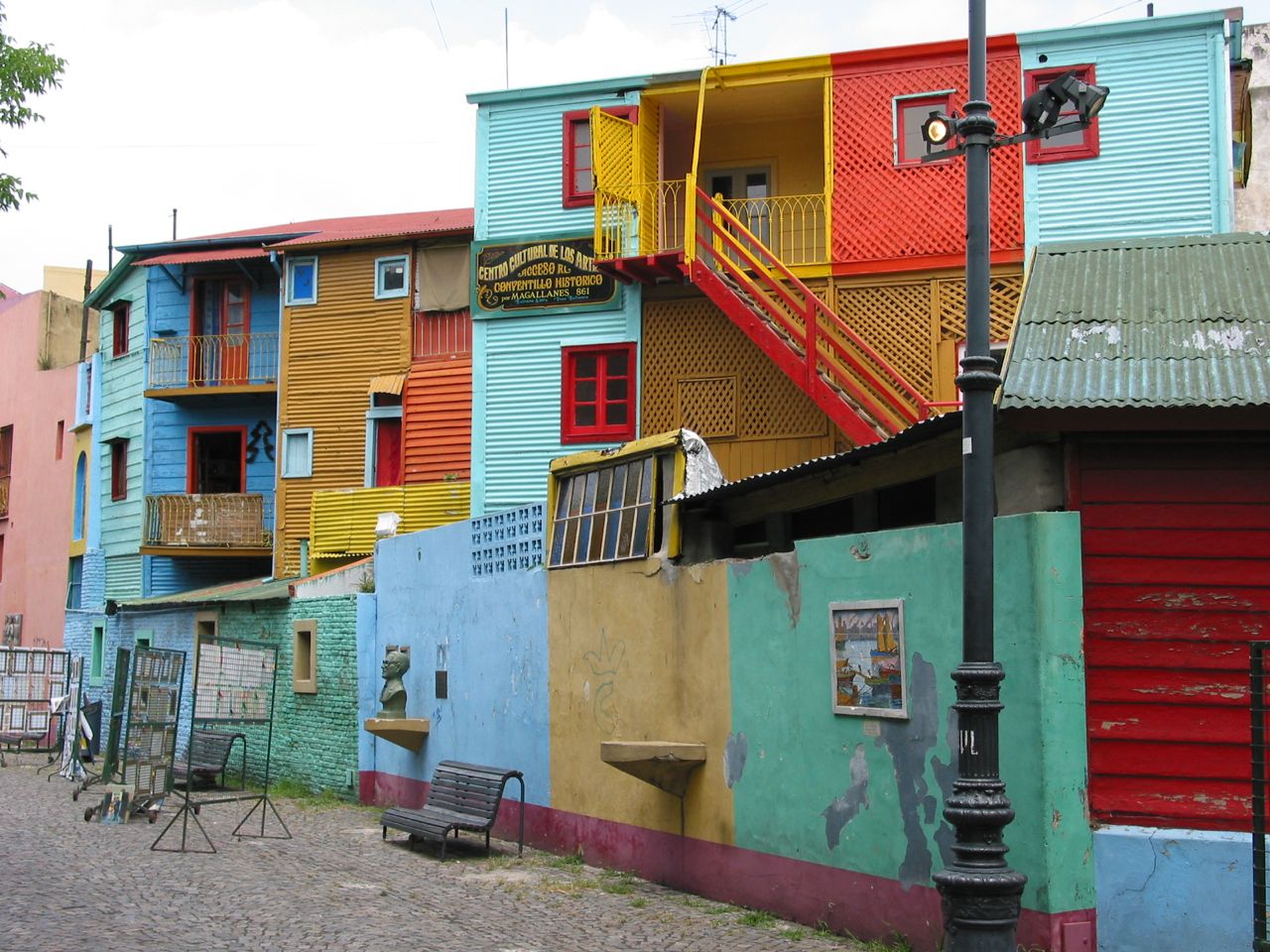
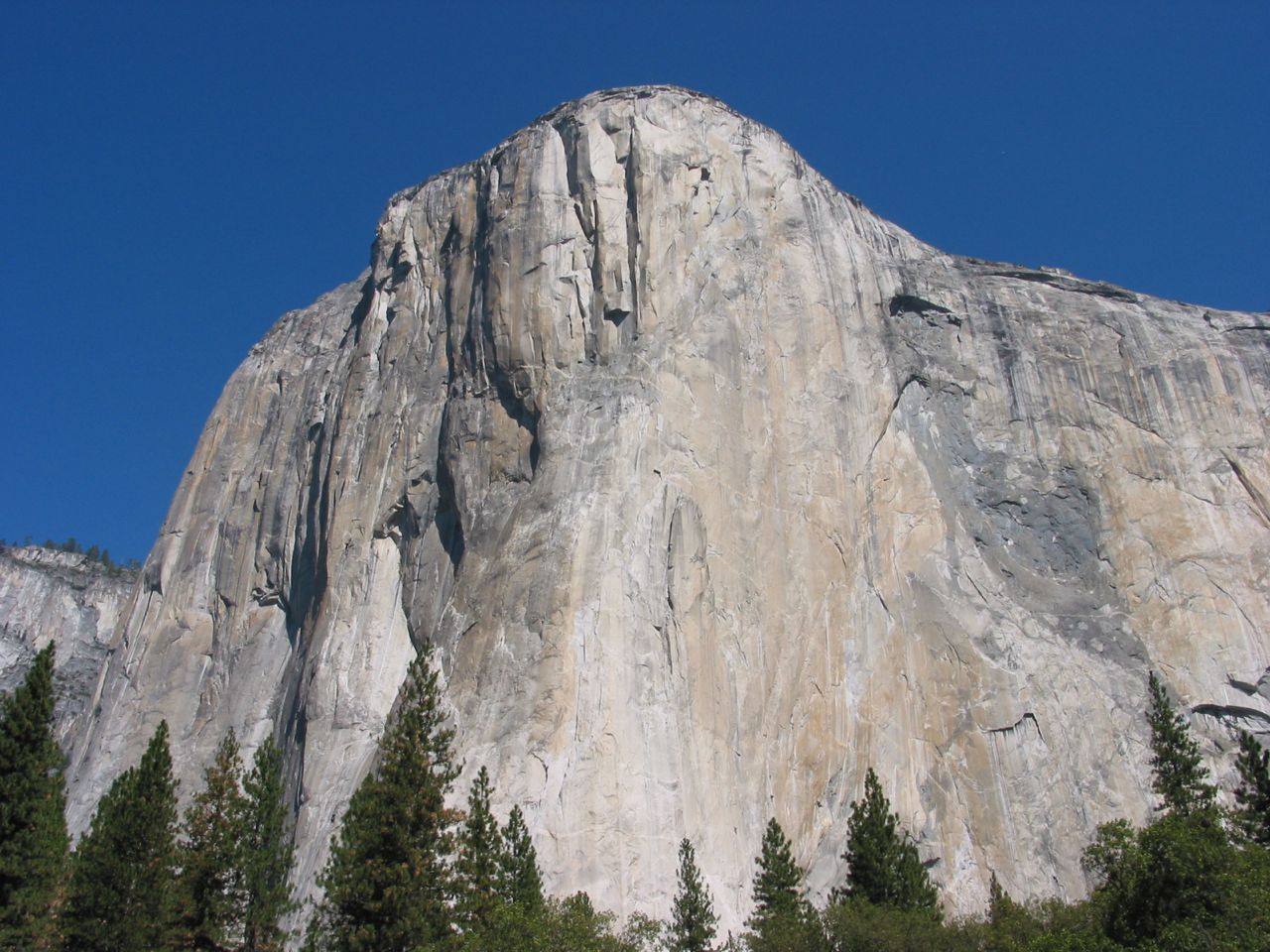
4. This gallery has thumbs assigned to 240x140, displaying in normal mode, with custom captions on (using a labels.txt file). {igallery}demos/galleries/travel:240:140:0:2{i/gallery}
-
 Bondi Beach Bondi Beach
 - Brazil - Lagoa Brazil - Lagoa
- Buenos Aires - La Boca Buenos Aires - La Boca
- Fishermen near Janitzio Fishermen near Janitzio
- Golden Gate Bridge Golden Gate Bridge
- San Francisco San Francisco
- Waterfall - Iguazu Waterfall - Iguazu
- Yosemite - El Capitan Yosemite - El Capitan
- Yosemite - Half Dome Yosemite - Half Dome




https://www.joomlaworks.net/support/docs/simple-image-gallery-pro#sigProId2ad6ad9f4e
Full demos can be found on our official demo site at: http://demo.joomlaworks.net/simple-image-gallery-pro
That's all there is to it! Please submit any comments to the related board for Simple Image Gallery PRO in our Community Forum.
Creating a new responsive layout based on Foundation's block grid.
If you are not aware of ZURB’s Foundation framework it is considered the most advanced front-end framework. You can download it or learn more about it from here although for this tutorial you are not required to download the entire framework, nor do you need to add any JavaScript scripts.
Overriding the extension
To create a new template or override an edit and existing one please refer to the “MVC templates: the power to customize the look of your galleries”.
Once you have the created or renamed the folder in templates/YOURJOOMLATEMPLATE/html/jw_sigpro/ we are ready to start.
Adding the Block grid in the CSS file
Using your favourite editor open the template’s CSS file. It is located in the /css folder. Once you have opened it, you need to add the Block Grid on top of the template file.
You can use this gist as a reference so you don not really have to download anything.
Hint: Be careful not to accidentally download and paste the entire framework. Only this small part is needed.
Explaining the block grid
The block grid has three breakpoints (stages): one for small viewports (phones), one for medium viewports (tablets), one for larger viewports (laptop and desktop computers) and 12 columns .
For smaller viewports the class small-block-grid- is used followed by the number of colums we want the layout to have.
For showing two columns the class would be small-block-grid-2 . For the medium and large viewports simply replace "small-" with "medium-" and "large-" respectively.
Example. Let’s say we wish our gallery to display 2 columns on phones, 3 columns on a tablet and 5 columns on larger devices. The classes you will need to use are:
small-block-grid-2 medium-block-grid-3 large-block-grid-5
Hint: Always start from the small- class and build up.
The HTML/PHP part (putting it together)
No significant changes are needed to the default.php file. What you need to do is:
a) Add the grid’s classes to your <ulul>element.
Example
<ul id="sigProId<?php echo $gal_id; ?>" class="sigProContainer sigProResponsive small-block-grid-2 medium-block-grid-3 large-block-grid-5<?php echo $singleThumbClass.$extraWrapperClass; ?>">
b) Remove any inline widths and replace them with a percentage based on the size you specified in the extension’s settings.
We need to add some inline styling to the <mg alt="" /> element as the example bellow:
style="background-image:url(); background-repeat: no-repeat; background-size: cover;” ..
and a padding bottom to the <a> element.
a href="/" class="sigProLink" style="width: 100%; padding-bottom:%;” ..
The code that renders the thumbnail should look like this in the end.
<a href="/<?php echo $photo->sourceImageFilePath; ?>" class="sigProLink<?php echo $extraClass; ?>" style="width: 100%; padding-bottom:<?php echo ($photo->height / $photo->width * 100); ?>%;" rel="<?php echo $relName; ?>[gallery<?php echo $gal_id; ?>]" title="<?php echo $photo->captionDescription.$photo->downloadLink.$modulePosition; ?>" data-fresco-caption="<?php echo $photo->captionDescription.$photo->downloadLink.$modulePosition; ?>" target="_blank"<?php echo $customLinkAttributes; ?>> <?php if(($gal_singlethumbmode && $count==0) || !$gal_singlethumbmode): ?> <img class="sigProImg" src="/<?php echo $transparent; ?>" alt="<?php echo JText::_('JW_SIGP_LABELS_08').' '.$photo->filename; ?>" title="<?php echo JText::_('JW_SIGP_LABELS_08').' '.$photo->filename; ?>" style="background-image: url(/<?php echo $photo->thumbImageFilePath; ?>); background-repeat: no-repeat; background-size: cover;" /> <?php endif; ?> <?php if($gal_captions): ?> <span class="sigProPseudoCaption"><b><?php echo $photo->captionTitle; ?></b></span> <span class="sigProCaption" title="<?php echo $photo->captionTitle; ?>"><?php echo $photo->captionTitle; ?></span> <?php endif; ?> </a>
You can find the complete file with all the edits here.
Final Note
This method uses percentages instead of fixed widths. The size of the thumbnails is calculated from the extension’s settings but due to the fact that the column width is not fixed, the actual size will vary from viewport to viewport. The aspect ratio will always be correct but the actual size in pixels might vary a little from your settings.
If you wish to display a fixed width thumbnail you should use another template, e.g. Elegant.
Both of the files can be found here.
Contributed Translations
3rd party contributions
The following list are contributions from Simple Image Gallery Pro users: