
The following instructions apply to version 3.0.0 or newer.
Simple Image Gallery Pro supports only Joomla versions 1.5, 2.5 & 3.x.
DOWNLOADING
Login to your Member Dashboard and grab the latest release from your "My Subscriptions" page. An active membership is required.
INSTALLATION
There is 1 single file you use to install the extension, which is compatible with Joomla 1.5 to 3.x. After you download this zip file, upload and install the plugin by using the Joomla installer. Navigate to:
- Extensions >> Install/Uninstall (for Joomla 1.5)
- Extensions >> Extension Manager (for Joomla 2.5 to 3.x)
...to install the extension.
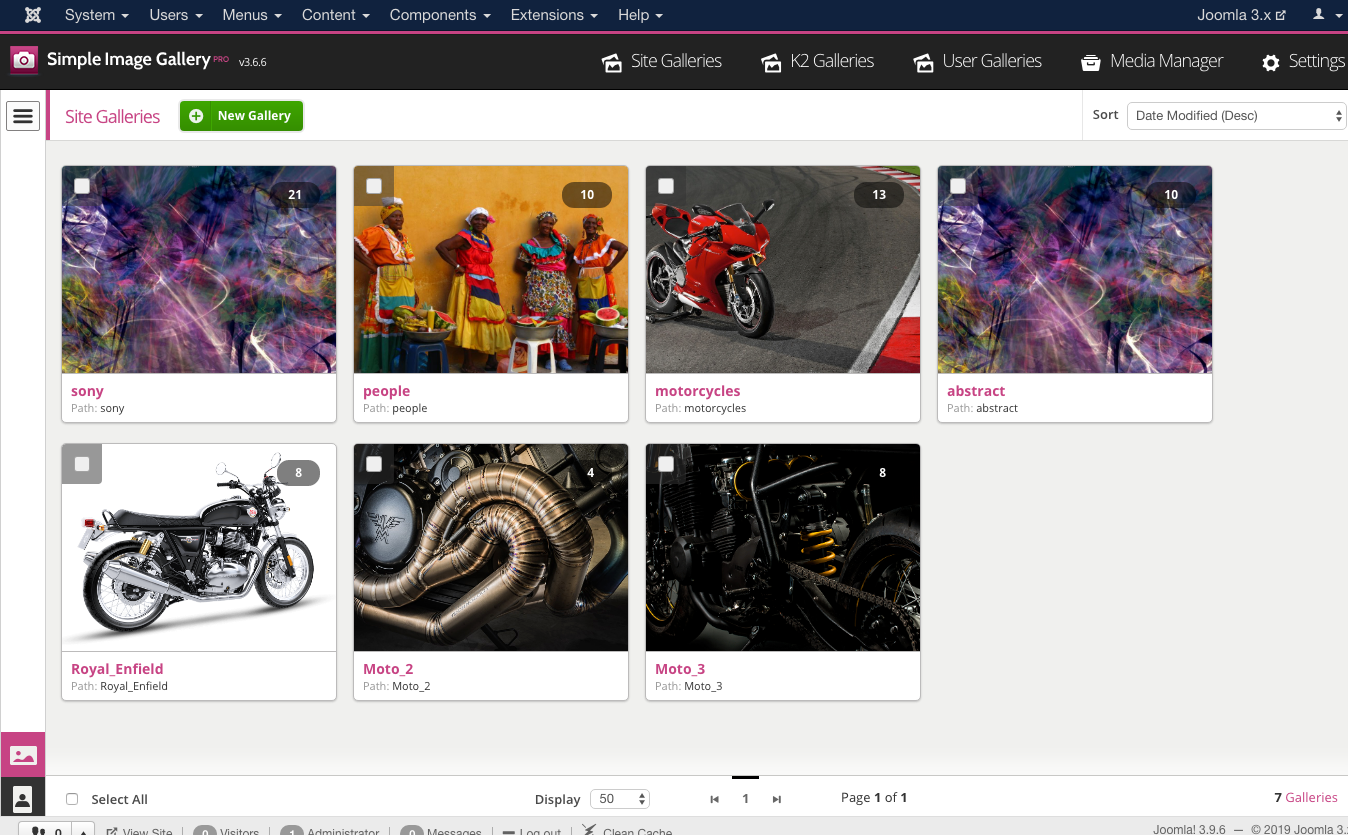
Finally, navigate to Components >> Simple Image Gallery Pro (all Joomla versions) to start editing your image galleries.
UPGRADING
Simply upload any newer version on top of the previous one you have installed on your site. The process is the same as installing the extension for the first time (as mentioned above). All your settings will be retained and any new features will be added automatically.
REQUIREMENTS
In order for Simple Image Gallery PRO to function properly, please make sure that you are running at least PHP 4 and that PHP's GD image library is installed on your server (common webhosts have GD installed by default). For the Flickr integration, PHP5 is required.
You also have to make sure that Joomla's /cache folder is writable, in other words, check that the permissions for this folder are 755 or 777. If the plugin cannot generate the thumbnails due to bad permissions, you will see a related notification.
HOW DOES IT WORK?
The concept is simple. You want to add image galleries inside your articles (content items)! First set the "Root folder" of all galleries in the extension's settings. By default it's the "images" folder ("image/stories" for Joomla 1.5 only). Now use the Simple Image Gallery Pro component (in the Joomla backend) to create a new gallery folder and in there start uploading images. You can optionally edit the image captions. Follow the same process to batch create your image galleries.
When you are ready to upload one of your image galleries, simply go into the Joomla article manager (or the K2 item manager, or the Virtuemart/redShop product manager etc.), locate the article/item/product you wish to add an image gallery into, place your mouse cursor where you want the image gallery to appear to inside your content (in the WYSIWYG editor) and then click on the editor plugin that reads "Simple Image Gallery Pro" at the bottom of the Joomla WYSIWYG editor. This button will trigger a lightbox popup which essentially loads the Simple Image Gallery Pro backend component and you can either choose an existing gallery to insert in your content, or you can create a new one.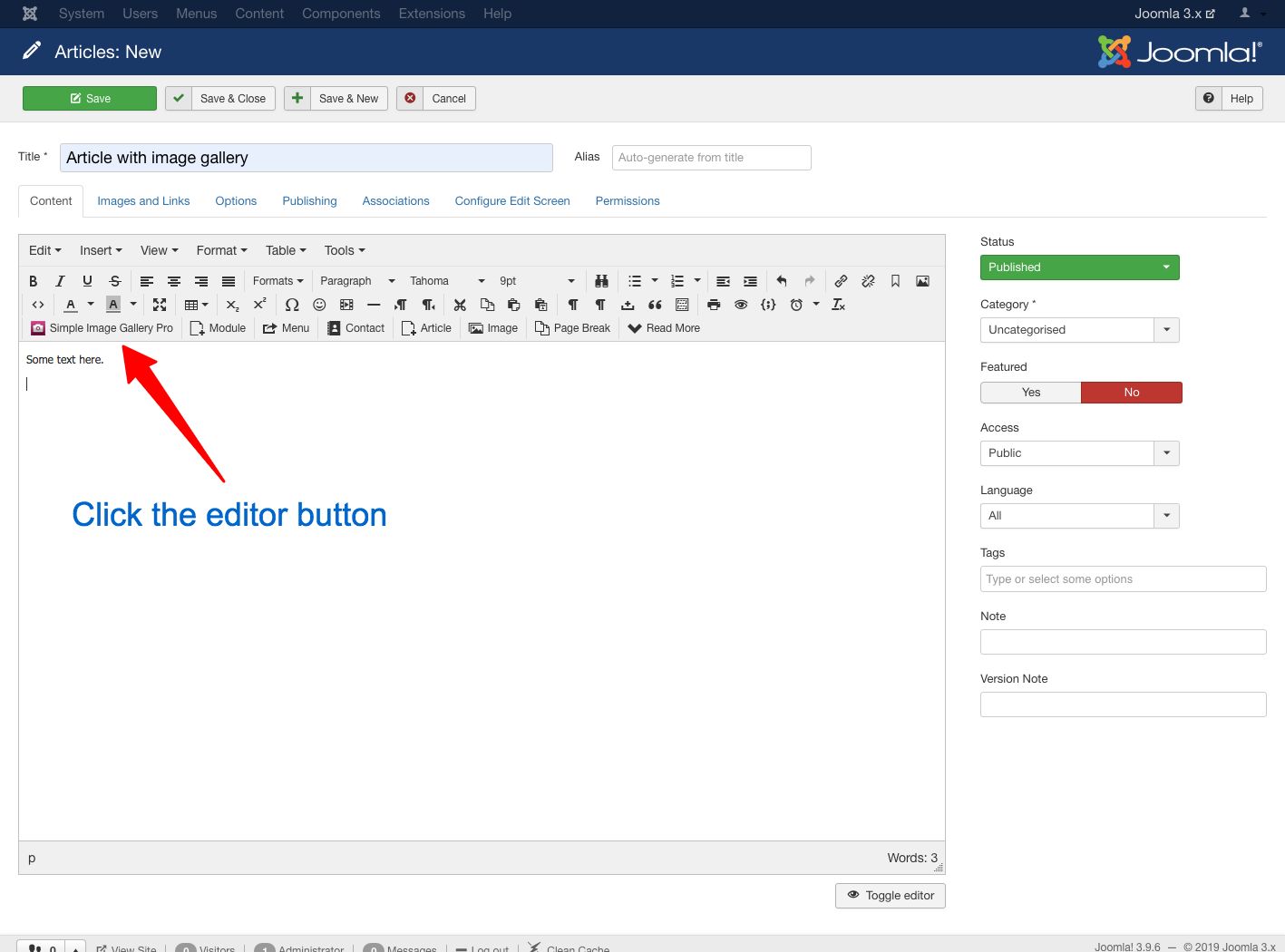
Once you insert an image gallery, you will see a plugin snippet like this: {igallery}summer_trip_to_italy{i/gallery}. This is what instructs Simple Image Gallery Pro to convert to an image gallery in the frontend (in the actual site).
You can have as many galleries as you want inside each content item, since caching takes care of performance. Thumbnails are not generated every time the page with the galleries loads, but after certain intervals, specified in the plugin parameters. The default interval (cache expiration time) is 120 minutes (2 hours). (You can see the thumbnails in your Joomla site's cache manager and you can delete the thumbnails whenever you want so they are instantly re-created upon subsequent page loads by visitors.)
Don't forget to adjust the width and height of the thumbnails. Before inserting an image gallery via the "Simple Image Gallery Pro" editor button, you can adjust these options at the bottom of the lightbox window. Decreasing the width means you are adding more thumbnails in each row of the gallery. So, experiment before going public. Also, set the image quality of the created thumbnails. Low quality means smaller thumbnail sizes and therefore better loading times for your site.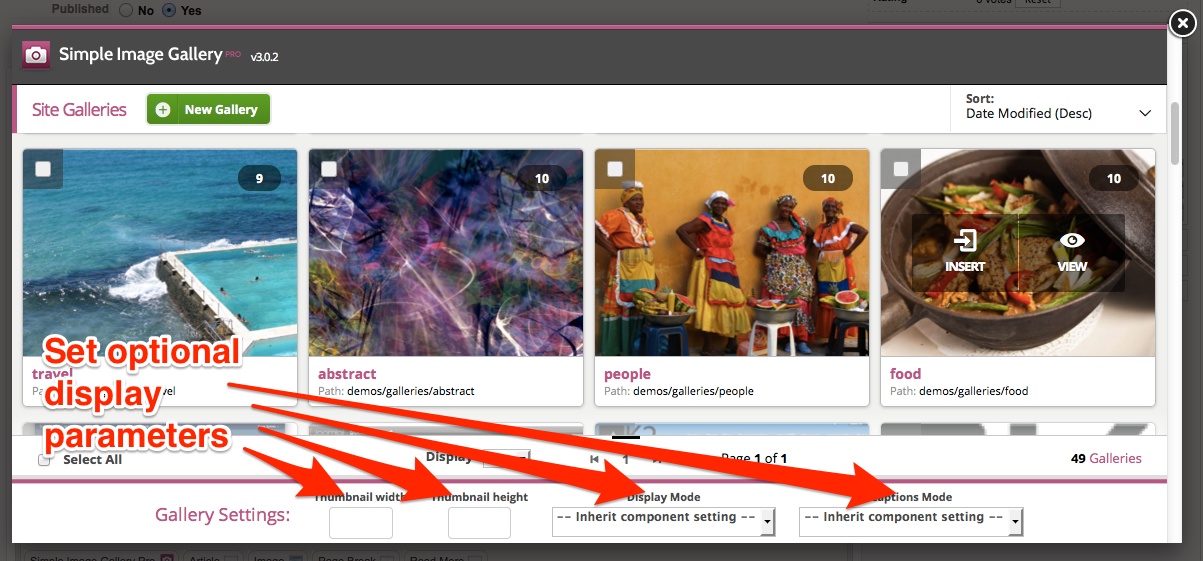
Please note that if you use K2 for your content and more specifically, if you wish to add an image gallery from the related tab in the K2 item form, you can only create, edit and select to use a gallery, but you cannot modify the gallery thumbnails dimensions as you would with galleries inserted from the plugin button. In that case, K2 galleries will inherit the global options configured in the component's settings (in the backend). Of course, you can always still use the plugin button to add galleries within content blocks either in the main content tab in the K2 item form or in WYSIWYG text blocks set in Extra Fields.
For performance issues, prefer not to use over 50 images per content item, otherwise you're just overweighing your pages. The plugin will have no problem handling the conversion, it's just that your users will wait for many thumbnails to load.
Alternatively, you can "switch" to "single thumbnail" display mode and launch your galleries from one thumbnail only! That's right! E.g. you can launch a slideshow of 50 images from a single thumbnail, without overweighing your article page with thumbnail images. The user sees all full-sized images by navigating with the "previous" and "next" buttons within the popup window! This can come handy when you want to display a sequence of images as a presentation.
Flickr Integration: A free API key is required to have Flickr photo set embedding on your site. The process to get an API key is very simple: Sign in to your Flickr account, then visit http://www.flickr.com/services/apps/create/ and choose to get a non-commercial key. Name your app as your website. You can safely use this API key on more than one websites, even on different domains.
Can frontend (registered) users upload image galleries? Frontend registered users are allowed to upload image galleries to their articles (or any other Joomla extension) by using the same process as backend users. When using the editor plugin button, frontend users can upload galleries to an automatically created user gallery folder. This prevents e.g. user "John" from seeing & modifying the galleries upload by user "Jane". Furthermore, they are not allowed to view or modify the image galleries that are uploaded from backend users typically inside the /images folder of a Joomla site. In other words, frontend gallery uploading for registered users is a sandboxed process. They can upload and manage their own galleries only. They cannot manage the galleries created by others. Please note that this "frontend user gallery uploading" feature is different from K2 frontend image gallery uploading (which is already sandboxed as a process too). This feature ONLY applies when using the editor plugin button inside a WYSIWYG editor area to upload a gallery in the frontend.
Old IE browsers and the "Polaroids" gallery layout: It is important to understand that the "Polaroids" gallery layout makes extensive use of CSS3 which is not fully supported by old versions of Internet Explorer (IE). More specifically, for IE version 6 to version 8 we use a graceful degradation approach, so that the gallery is visible and functional. Thus the layout is not identical to how modern browsers like Mozilla Firefox, Google Chrome, Apple Safari, Opera & IE9+ render the gallery. We strongly advise users whose site visitors are mostly coming from old IE versions to possibly use a different gallery layout.
GOING PRO!
Multiple "Popup" Engines
Simple Image Gallery PRO utilizes 10 popup engines for ultimate style and compatibility with various frameworks. Most are based on the jQuery JavaScript library and 2 of them can display the source image in a "responsive" modal box with a touch friendly user interface. Ideal for responsive web sites! 3 popup engines work with "vanilla" JavaScript (they don't require jQuery or any other such library) and most of the popup engines are "slideshow capable". Popup engines utilizing jQuery will download the latest library version minified from the "Google AJAX Libraries API" service, which means faster load times for your website and your gallery. You have full control over how jQuery is loaded. Please note that in Joomla 3.0 or later the extension uses the CMS's built-in copy of jQuery.
Manual Gallery Snippet Setting
"Simple Image Gallery PRO" provides the user the ability to have customized image galleries. For this to happen, you can either use the new user interface (recommended way) or you can directly use the included 6 additional "switches" (additional to the image gallery folder path), which you can use to set different width, height, display mode, caption mode, popup engine and gallery layouut per gallery! That means you can bypass the global settings "Thumbnail viewport width", "Thumbnail viewport height", "Display Mode", "Default caption (label) handling", "Popup engine for image galleries" and "Layout template for image galleries", and have for example image galleries that display thumbnails in different dimensions within the same article.
To do that you need to insert up to 6 (optional) values in the tags used by the plugin. The syntax is the following:
{igallery}folder_path:thumbs_width:thumbs_height:display_mode:caption_mode:popup_engine:gallery_layout{i/gallery}
Watch out for the seperator, which is the character ":".
- "thumbs_width" is the target width in pixels for all thumbnails.
- "thumbs_height" is the target height in pixels for all thumbnails.
- "display_mode" is the mode in which we want our gallery to display. It takes only 2 values, either "0" or "1". "0" means "normal mode" and "1" means "single thumbnail mode".
- "caption_mode" control how captions (labels) are displayed. It takes only 3 values, either "0" (no captions), "1" (caption with generic messages) or "2" (captions coming from labels.txt files).
- "popup_engine" overrides the default popup engine (see our demo site). Values are (alphabetically): highslide, jquery_colorbox, jquery_fancybox, jquery_fresco, jquery_lightview, jquery_magnificpopup, jquery_nivolightbox, jquery_prettyphoto, jquery_slimbox, jquery_swipebox, lytebox, simplebox
- "gallery_layout" overrides the default gallery layout. Values are: Artistic, Classic, Elegant, Galleria, GalleriaWhite, Polaroids, Sleek
The most important ones of course are the first 2 params (after the folder path): width & height
So if for example you want to insert an image gallery in some article with thumbnails displaying in 300px width and 160px height, while keeping the "normal" display mode (showing all thumbs, not just the first one), with caption showing generic messages, you would insert the following tag:
{igallery}folder/some_folder:300:160:0:1{i/gallery}
...which translates to: "create image gallery from the images inside 'folder/some_folder', give them a width of 300px and a height of 160px, do not display them (0) in "single thumbnail" mode and display generic captions (1) for every thumbnail.
If we did want to display the gallery in "single thumbnail" mode, then we would insert:
{igallery}folder/some_folder:300:160:1:1{i/gallery}.
If we wanted to override the popup engine and the gallery layout as well, we could use something like:
{igallery}folder/some_folder:200:80:1:2:jquery_colorbox:Galleria{i/gallery}
Important!
These values are completely optional. This means you can use: {igallery}some_folder:200:160{i/gallery} to adjust dimensions only to thumbs (no change in display mode) or even {igallery}some_folder::160{i/gallery} to adjust just the height (the width value was ommitted). If we wanted to simply switch the gallery to "single thumbnail" mode, then we would just add something like: {igallery}some_folder:::1{i/gallery}. When you don't enter one of the 3 values, it is assumed you are using the global ones. Simple, right?
Flickr Integration
Adding Flickr Sets to Joomla couldn't get any simpler than this. Just the URL of a Flickr set (e.g. http://www.flickr.com/photos/joomlaworks/sets/72157626907305094/) and paste the URL inbetween the plugin's tags like this:
{igallery}http://www.flickr.com/photos/joomlaworks/sets/72157626907305094/{i/gallery}
...and you get probably the simplest and fastest way to embed Flickr Sets in Joomla. Remember to get a Flickr API key first at http://www.flickr.com/services/apps/create/.
For more advanced overrides, all additional values/params as outlined in the previous section are also present for Flickr Set embedding, with the exception of an extra value for the count of images fetched from Flickr. Check this example:
{igallery}http://www.flickr.com/photos/joomlaworks/sets/72157626907305094/:20:200:80:1:2:jquery_colorbox:Galleria{i/gallery}
Notice one additional parameter compared to regular "uploaded" galleries? There is an image counter right after the Flickr URL. So the above example translates to:
{igallery}flickr_URL:flickr_Image_Count:thumbs_width:thumbs_height:display_mode:
caption_mode:popup_engine:gallery_layout{i/gallery}
Individual captions/labels on thumbnails and popup images
"Simple Image Gallery PRO" gives you the ability to easily set individual captions (labels) on popup images. This is a feature many people have asked for, especially photographers and other such professionals, who want to add some comment in their photos and not just have a generic message appearing. Although using EXIF data from JPEG images originally sounded like a nice idea, it soon became obvious to us the trouble in which users would get to add a few captions to their images, as well as the limitations posed (no support for GIF or PNG images). So we decided that a simple text file would do a better job. So how do you add custom captions/labels to your images?
Simply enable the related option "Default caption (label) handling" in the plugin parameters and the required xx-XX.labels.txt file (where xx-XX is your site's default language locale) for each gallery will be automatically generated with some sample text in.
To edit these captions, you can either use the component's backend interface (recommended way) or you can directly edit the captions files. Simply open and edit the xx-XX.labels.txt file of the gallery for which you want to have captions. You can freely use HTML inside the description, just make sure you have one caption per line. After you edit the xx-XX.labels.txt file for a gallery, you would end up with something like:
filename1.jpg|Trip to Italy|You can see us here in piazza di Roma
other_filename.png|caption title|and this is another caption<br />with some HTML <b>in it</b>!
trip_to_canada.gif|caption title|SIG Pro is pretty cool!
As you can easily understand, each caption is broken down to 3 parts:
- the filename (autogenerated from Simple Image Gallery PRO)
- the caption title
- the caption description
Simple Image Gallery Pro plays nice with Joom!Fish too. If you have multiple languages set in your site with Joom!Fish, the plugin will create different xx-XX.labels.txt files, using the available languages. So if your site has English and French available for example, the plugin auto-generates en-GB.labels.txt and fr-FR.labels.txt files.
In versions prior to 2.5 of the plugin, the caption files where only named labels.txt. If you have already built your caption files, you don't need to worry. The plugin can still read labels.txt files, but any new gallery created will make use of the new naming format.
MVC templates: the power to customize the look of your galleries
The feature trully setting apart all our commercial plugins from any other Joomla plugin are their MVC architecture, currently available in Joomla for components and modules only. That means you can use HTML and CSS template overrides inside your Joomla template and completely change the way the plugin elements display on your website!
So you can either choose to use the versatile base styling of the plugin or simply override it (both the HTML and CSS code) by copying the plugin's folder /plugins/content/jw_sigpro/tmpl/SomeGalleryName in Joomla 1.5 or the folder /plugins/content/jw_sigpro/jw_sigpro/tmpl/SomeGalleryName in Joomla 2.5 or newer TO your Joomla template's /templates/YOURJOOMLATEMPLATE/html/jw_sigpro/ folder (create it if it doesn't exist), as you would with components and modules. Whatever changes you do from now on within this folder, will completely override the plugin's output, exactly as you would with any other MVC component or module.
Simple Image Gallery Pro uses 6 base layouts (templates) for rendering galleries, with associated CSS, JS and IMAGES folders. You are able to override all files or selected files, as you would with any other MVC component or module, with the better exception that Simple Image Gallery overrides CSS and JS files as well, as long as you maintain the same names (template.css and behaviour.js).
Putting it all together
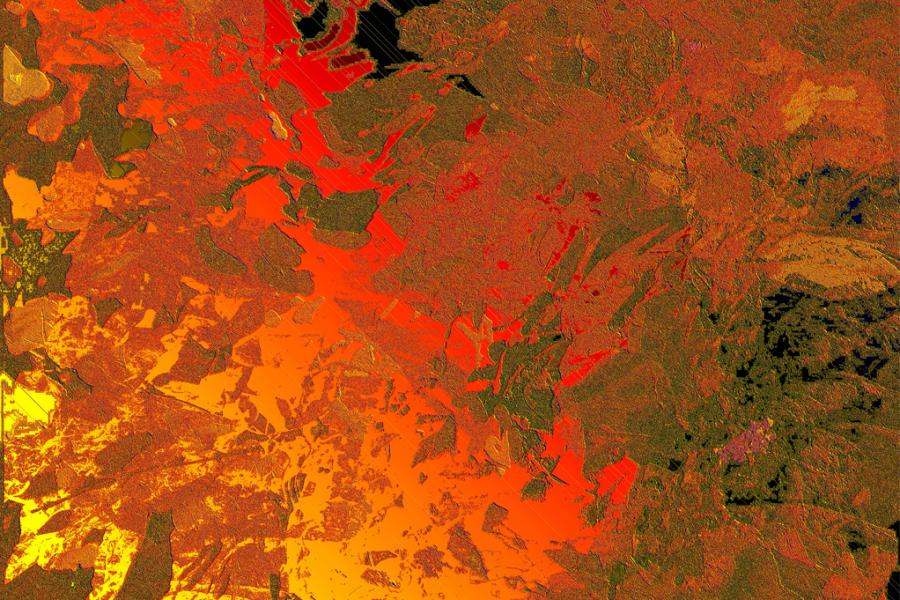
1. This gallery operates using the global plugin parameter settings (thumbnail dimensions set to 200x160, normal mode, generic caption messages). Tag used: {igallery}demos/galleries/abstract{i/gallery}









https://www.joomlaworks.net/blog/itemlist/date/2011/0?start=120#sigProIdfe6145fe10
2. This gallery has thumbs assigned to 180x100, displaying in normal mode, no caption messages. Tag used: {igallery}demos/galleries/movies2012:180:100:0:0{i/gallery}



























https://www.joomlaworks.net/blog/itemlist/date/2011/0?start=120#sigProId36aaa233b7
3. This gallery has thumbs assigned to 200x260, displaying in single-thumbnail mode, no caption messages. Tag used: {igallery}demos/galleries/casino_royale:200:260:1:0{i/gallery}

https://www.joomlaworks.net/blog/itemlist/date/2011/0?start=120#sigProId73e7e854ab
As you can see here, nearby text nicely wraps around the thumbnail.
4. This gallery has thumbs assigned to 240x140, displaying in normal mode, with custom captions on (using a labels.txt file). {igallery}demos/galleries/travel:240:140:0:2{i/gallery}
-
 Bondi Beach Bondi Beach
 - Brazil - Lagoa Brazil - Lagoa
- Buenos Aires - La Boca Buenos Aires - La Boca
- Fishermen near Janitzio Fishermen near Janitzio
- Golden Gate Bridge Golden Gate Bridge
- San Francisco San Francisco
- Waterfall - Iguazu Waterfall - Iguazu
- Yosemite - El Capitan Yosemite - El Capitan
- Yosemite - Half Dome Yosemite - Half Dome
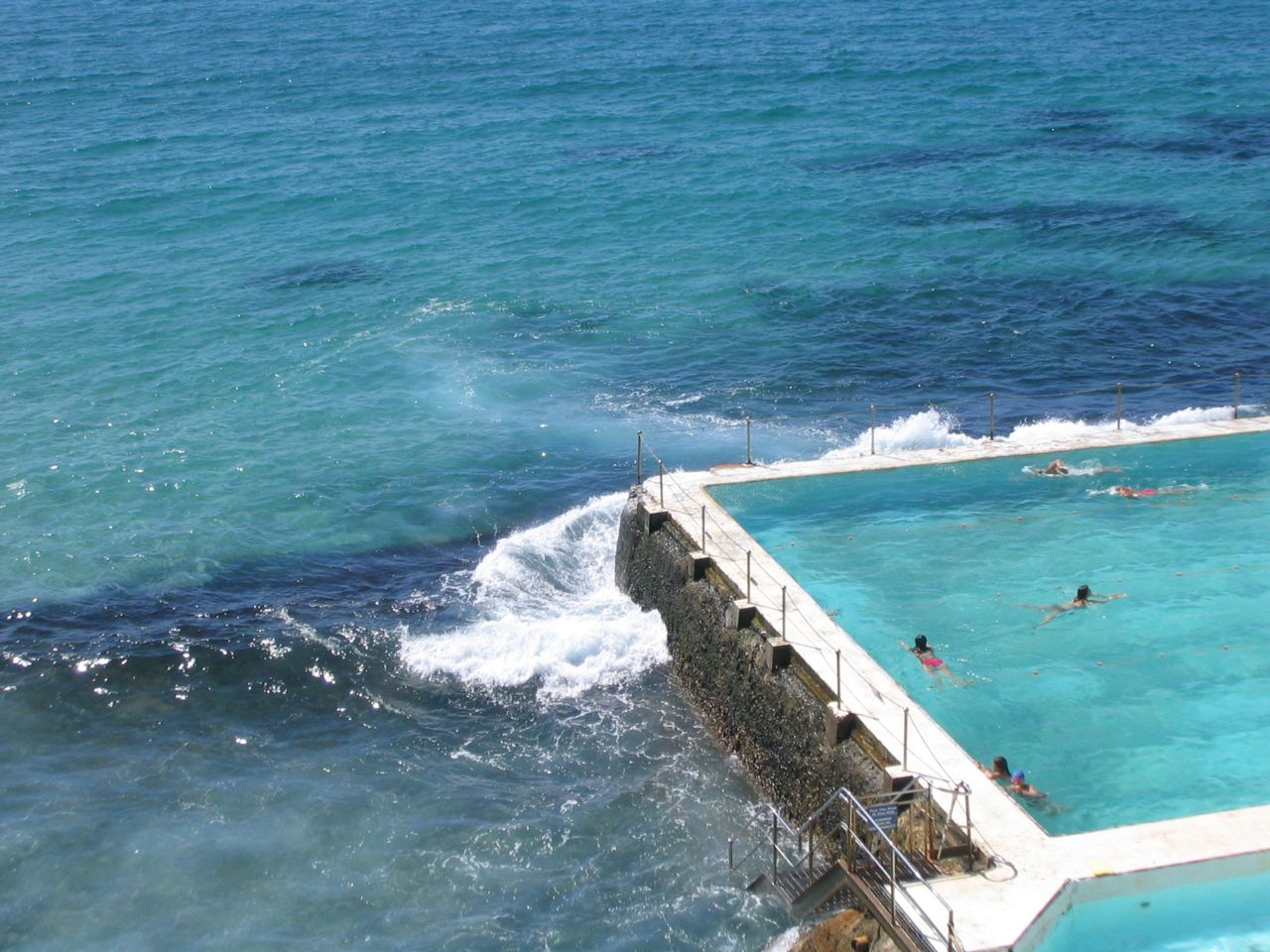
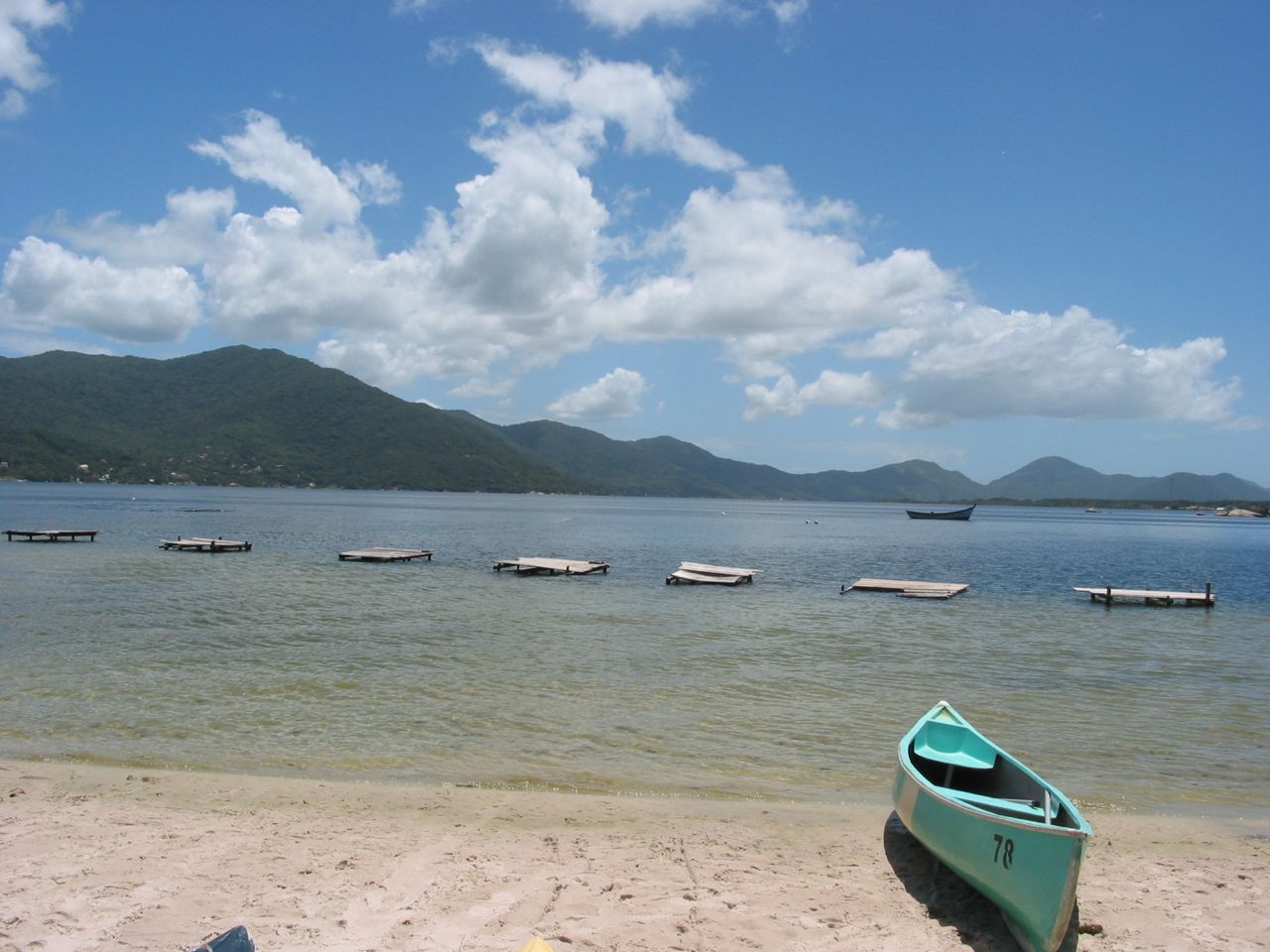
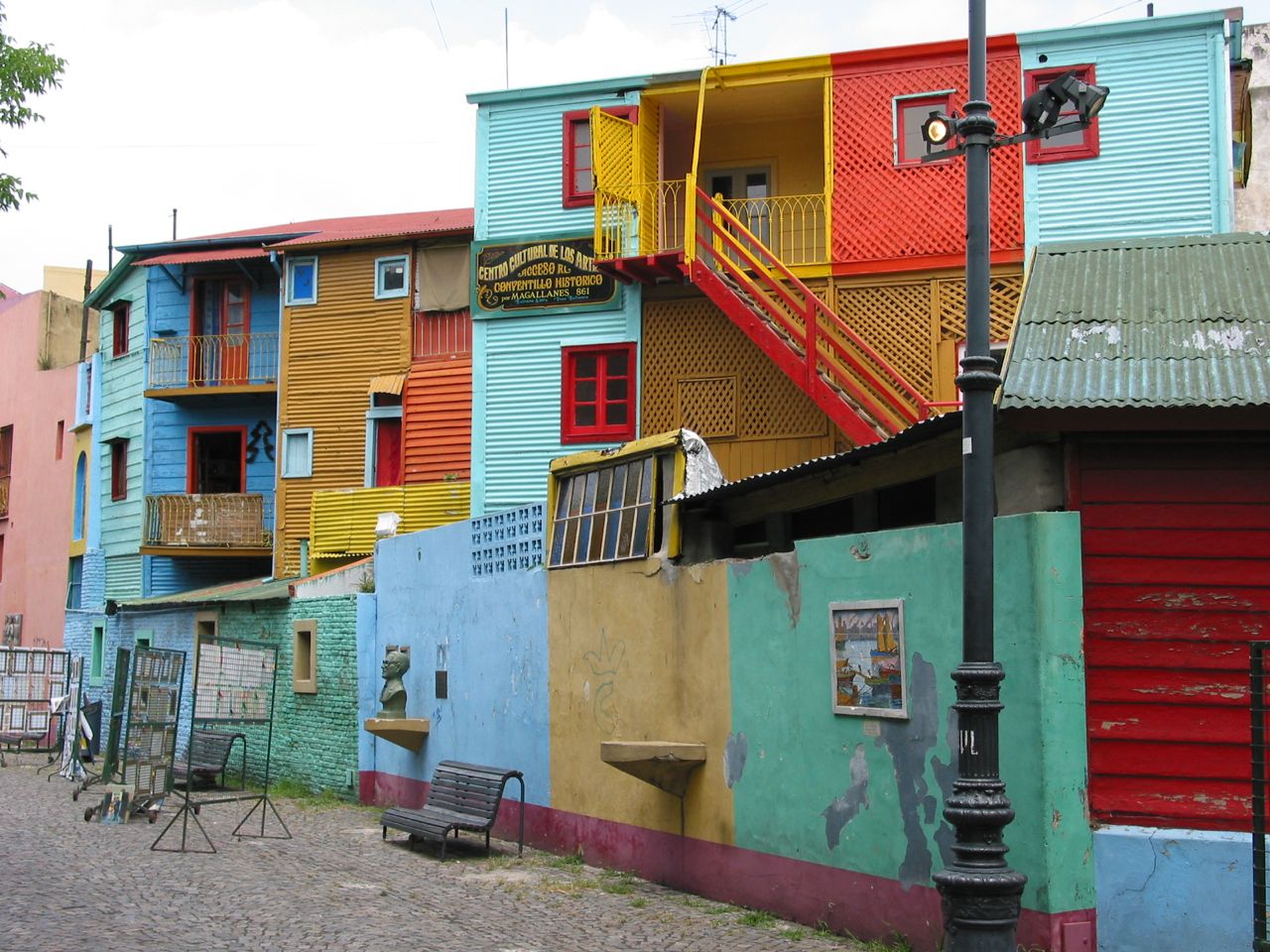



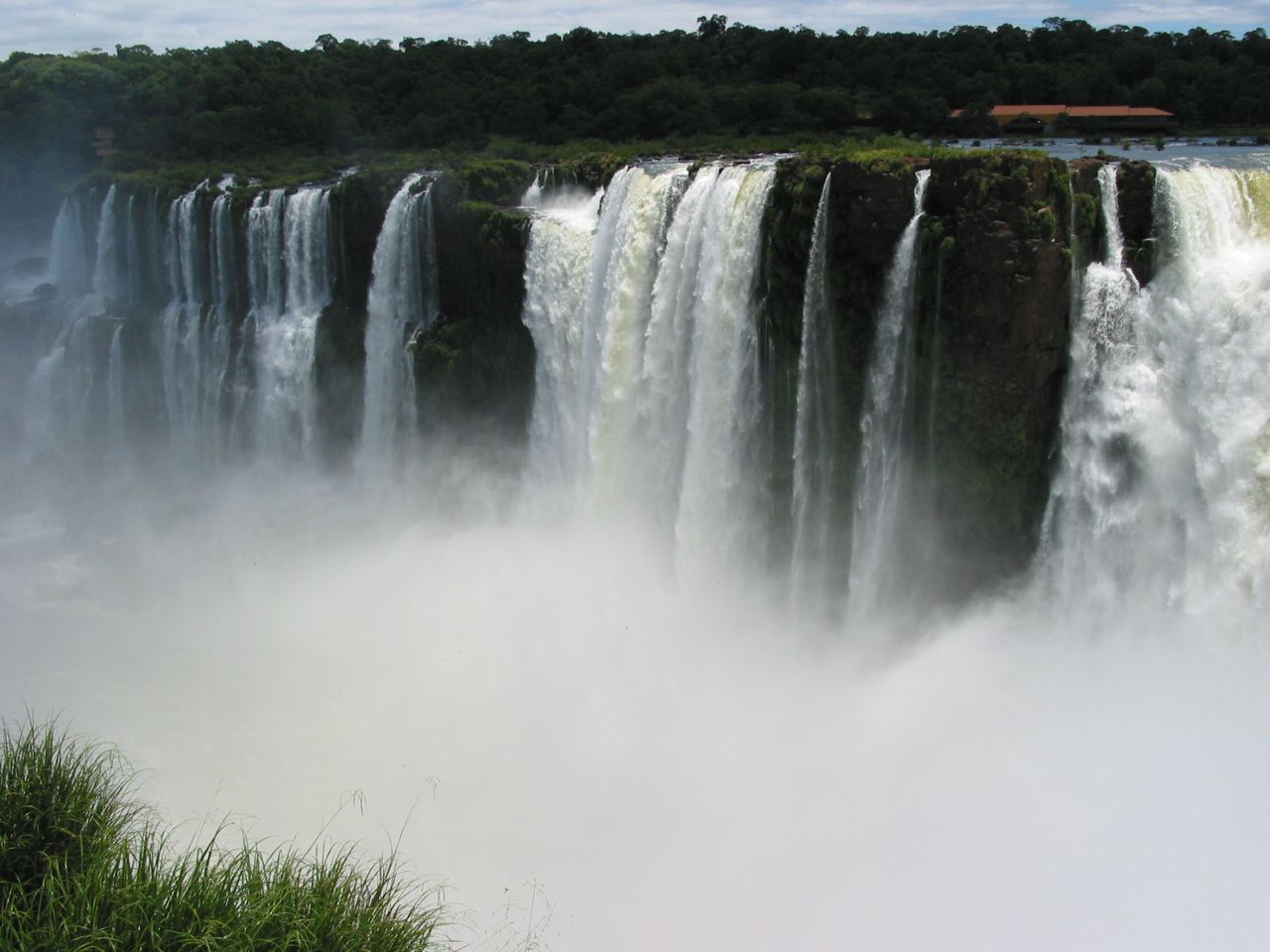
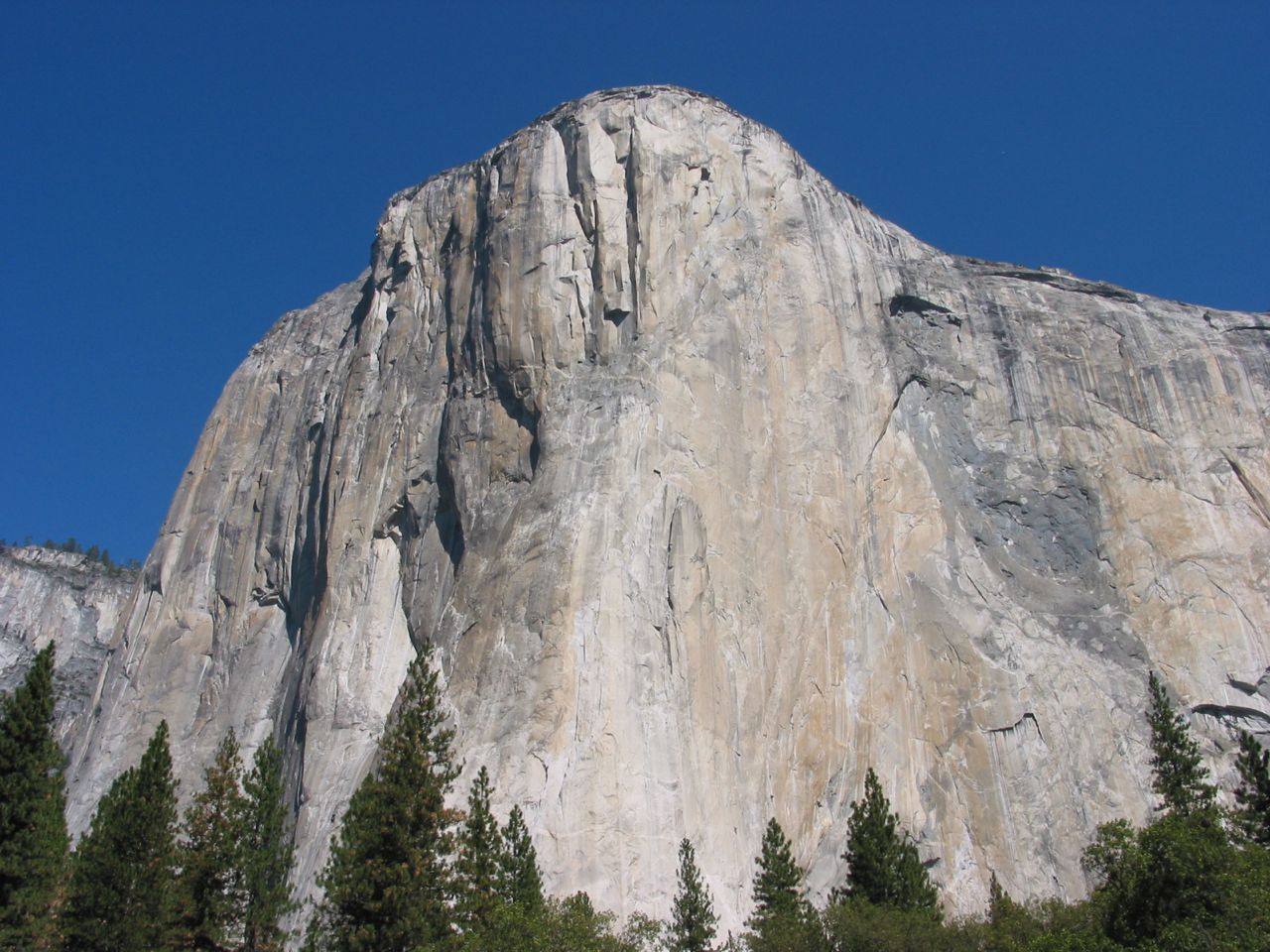
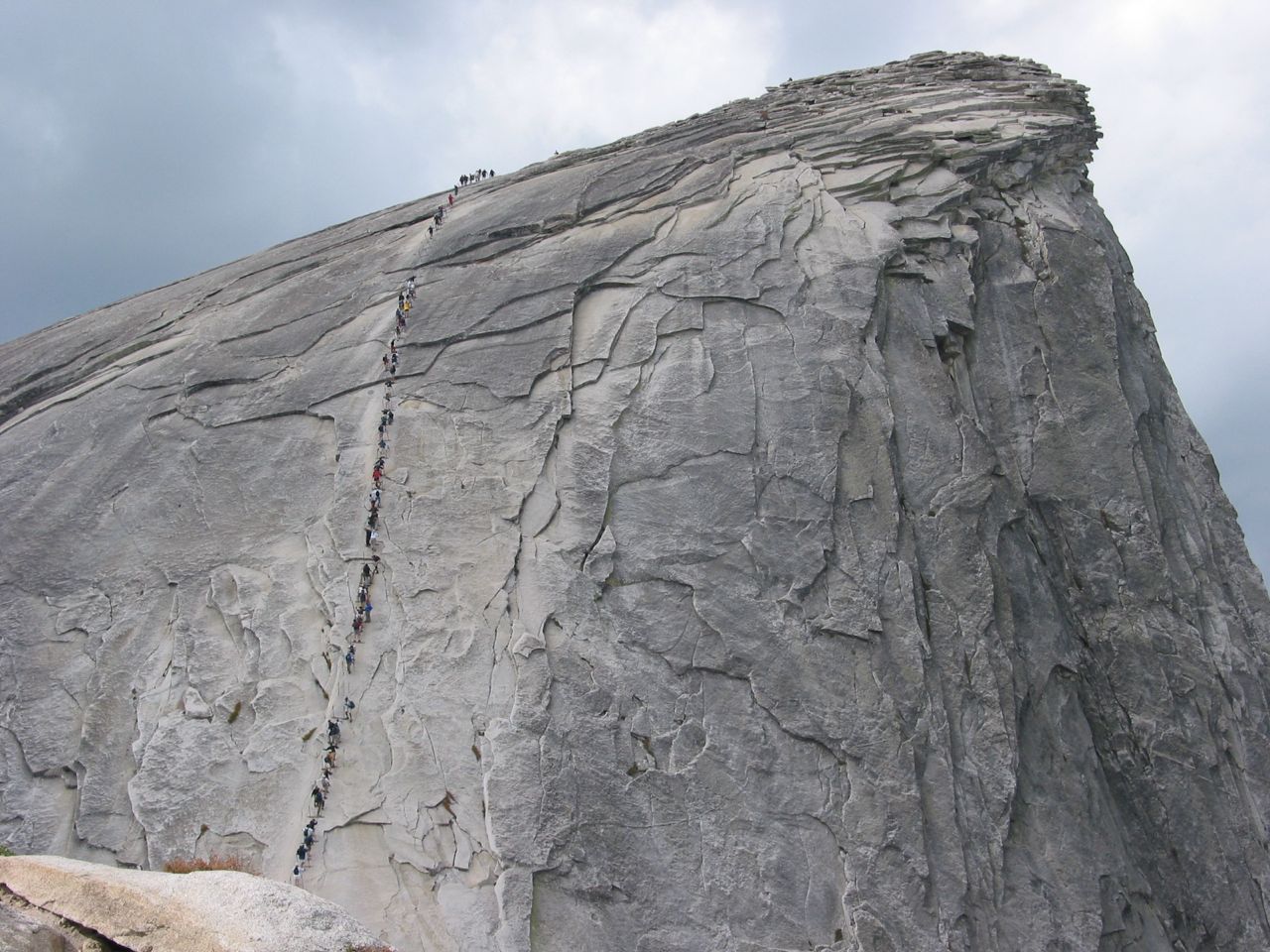
https://www.joomlaworks.net/blog/itemlist/date/2011/0?start=120#sigProId2ad6ad9f4e
Full demos can be found on our official demo site at: http://demo.joomlaworks.net/simple-image-gallery-pro
That's all there is to it! Please submit any comments to the related board for Simple Image Gallery PRO in our Community Forum.
Creating a new responsive layout based on Foundation's block grid.
If you are not aware of ZURB’s Foundation framework it is considered the most advanced front-end framework. You can download it or learn more about it from here although for this tutorial you are not required to download the entire framework, nor do you need to add any JavaScript scripts.
Overriding the extension
To create a new template or override an edit and existing one please refer to the “MVC templates: the power to customize the look of your galleries”.
Once you have the created or renamed the folder in templates/YOURJOOMLATEMPLATE/html/jw_sigpro/ we are ready to start.
Adding the Block grid in the CSS file
Using your favourite editor open the template’s CSS file. It is located in the /css folder. Once you have opened it, you need to add the Block Grid on top of the template file.
You can use this gist as a reference so you don not really have to download anything.
Hint: Be careful not to accidentally download and paste the entire framework. Only this small part is needed.
Explaining the block grid
The block grid has three breakpoints (stages): one for small viewports (phones), one for medium viewports (tablets), one for larger viewports (laptop and desktop computers) and 12 columns .
For smaller viewports the class small-block-grid- is used followed by the number of colums we want the layout to have.
For showing two columns the class would be small-block-grid-2 . For the medium and large viewports simply replace "small-" with "medium-" and "large-" respectively.
Example. Let’s say we wish our gallery to display 2 columns on phones, 3 columns on a tablet and 5 columns on larger devices. The classes you will need to use are:
small-block-grid-2 medium-block-grid-3 large-block-grid-5
Hint: Always start from the small- class and build up.
The HTML/PHP part (putting it together)
No significant changes are needed to the default.php file. What you need to do is:
a) Add the grid’s classes to your <ulul>element.
Example
<ul id="sigProId<?php echo $gal_id; ?>" class="sigProContainer sigProResponsive small-block-grid-2 medium-block-grid-3 large-block-grid-5<?php echo $singleThumbClass.$extraWrapperClass; ?>">
b) Remove any inline widths and replace them with a percentage based on the size you specified in the extension’s settings.
We need to add some inline styling to the <mg alt="" /> element as the example bellow:
style="background-image:url(); background-repeat: no-repeat; background-size: cover;” ..
and a padding bottom to the <a> element.
a href="/" class="sigProLink" style="width: 100%; padding-bottom:%;” ..
The code that renders the thumbnail should look like this in the end.
<a href="/<?php echo $photo->sourceImageFilePath; ?>" class="sigProLink<?php echo $extraClass; ?>" style="width: 100%; padding-bottom:<?php echo ($photo->height / $photo->width * 100); ?>%;" rel="<?php echo $relName; ?>[gallery<?php echo $gal_id; ?>]" title="<?php echo $photo->captionDescription.$photo->downloadLink.$modulePosition; ?>" data-fresco-caption="<?php echo $photo->captionDescription.$photo->downloadLink.$modulePosition; ?>" target="_blank"<?php echo $customLinkAttributes; ?>> <?php if(($gal_singlethumbmode && $count==0) || !$gal_singlethumbmode): ?> <img class="sigProImg" src="/<?php echo $transparent; ?>" alt="<?php echo JText::_('JW_SIGP_LABELS_08').' '.$photo->filename; ?>" title="<?php echo JText::_('JW_SIGP_LABELS_08').' '.$photo->filename; ?>" style="background-image: url(/<?php echo $photo->thumbImageFilePath; ?>); background-repeat: no-repeat; background-size: cover;" /> <?php endif; ?> <?php if($gal_captions): ?> <span class="sigProPseudoCaption"><b><?php echo $photo->captionTitle; ?></b></span> <span class="sigProCaption" title="<?php echo $photo->captionTitle; ?>"><?php echo $photo->captionTitle; ?></span> <?php endif; ?> </a>
You can find the complete file with all the edits here.
Final Note
This method uses percentages instead of fixed widths. The size of the thumbnails is calculated from the extension’s settings but due to the fact that the column width is not fixed, the actual size will vary from viewport to viewport. The aspect ratio will always be correct but the actual size in pixels might vary a little from your settings.
If you wish to display a fixed width thumbnail you should use another template, e.g. Elegant.
Both of the files can be found here.
Contributed Translations
3rd party contributions
The following list are contributions from Simple Image Gallery Pro users:

SocialConnect is the only Joomla extension that allows you to integrate your Joomla site with social networks and identity providers for user authentication, posting content directly to social networks and 3rd-party comment system integration.

K2 is the popular powerful content extension for Joomla with CCK-like features. It provides an out-of-the box integrated solution featuring rich content forms for items (think of Joomla articles with additional fields for article images, videos, image galleries and attachments), nested-level categories, tags, comments, a system to extend the item base form with additional fields, a powerful plugin API to extend item, category and user forms, ACL, frontend editing, sub-templates and a lot more!
GNU/GPL License
The software distributed by JoomlaWorks Ltd. (the "products") consists of components, modules and plugins for the Joomla application framework (also identified as "Joomla extensions" as a whole).
The products are free software; you can redistribute a product and/or modify it under the terms of the GNU General Public License as published by the Free Software Foundation; either version 2 of the License, or (at your option) any later version. All existing copyrights must be prominently visible on all modified versions of this software.
The products are distributed in the hope that they will be useful, but WITHOUT ANY WARRANTY; without even the implied warranty of MERCHANTABILITY or FITNESS FOR A PARTICULAR PURPOSE. Please read the complete GNU General Public License for more details.
Proprietary License (For Products Available Under Subscription)
The templates (also referred to as themes, layouts or skins across all JoomlaWorks sites) included in all products available under a subscription are distributed under a proprietary license and are not covered by the GNU/GPL license. You are authorized to make any necessary modification(s) to the products' templates to fit your purposes. You may not however redistribute or release any modifications as GPL or otherwise. You must also not change or remove the copyright information in the HTML, CSS and JavaScript files. Please contact us if you have any requirements that are not covered by these terms.
Terms of Service (For Products Available Under Subscription)
Our website provides a download service for the products in accordance with the licenses listed above and the following Terms Of Service issued by our company, JoomlaWorks Ltd.:
- Unlimited product usage granted: Your membership grants you the rights to download the products as often as desired within your subscription period and use in as many domains and/or websites as you wish. For example, a 12 month membership entitles you to download the products an unlimited number of times within 12 months. If you renew your subscription, you are entitled to download the products to the extent of your subscription period. Even after your membership expires, you may continue to use the products. Thus, the products are not time-limited.
- Product modifications: You are authorized to make any necessary modification(s) to the products to fit your purposes. Redistribution of the product or any modified version must always be done in accordance with the GNU/GPL license. In this case, you must also not change or remove the copyright information in the header of the XML descriptor file or in PHP files.
- Template modifications: You are authorized to make any necessary modification(s) to the templates included in our products available under subscription to fit your purposes. It is strictly prohibited however to redistribute or release any modifications that apply to HTML, CSS or JavaScript files as GPL or otherwise, for the sake of porting/forking these templates to any platforms and/or content management systems. You must also not change or remove the copyright information in the HTML, CSS and JavaScript files.
- Unauthorized Use: Although the number of downloads are not limited, subscriptions can not be shared (see below, 'Assignability'). Sharing or other methods which allow for multiple, simultaneous downloads (and thereby affect the performance of this web site) are strictly forbidden and may result in termination of your subscription.
- Updates: All of the products are designed for the latest stable (LTS/Long Term Support) version of Joomla unless stated otherwise, but we can give no guarantee, that the products will run with future versions of Joomla. Subscribers may use our Ticket Support System to address any issues related to software versions.
- Delivery: All subscriptions will be immediately activated after we have succesfully received your payment. Once a purchase is complete, the activation email will be sent to the email address specified during checkout.
- Assignability: You may not sub-license, assign, or transfer your subscription to anyone else without prior written consent from JoomlaWorks Ltd.
- Ownership: You may not claim intellectual or exclusive ownership to any of the products, modified or unmodified. All products are property of JoomlaWorks Ltd. The products are provided “as is” without warranty of any kind, either expressed or implied. In no event shall our juridical person be liable for any damages including, but not limited to, direct, indirect, special, incidental or consequential damages or other losses arising out of the use of or inability to use the products.
- Return/Refund Policy: Since our company is offering non-tangible irrevocable goods we do not issue refunds after a subscription is purchased, which you are responsible for understanding upon purchasing. Please make sure that you have carefully read all relevant documentation and tried out the demos.
- Warranty: JoomlaWorks does not warranty or guarantee these products in any manner. We cannot guarantee they will function with all 3rd party extensions or templates as there is currently no certification process for such extensions or templates. All JoomlaWorks products are tested to work on all major browsers like Mozilla Firefox, Microsoft Internet Explorer (version 7 and newer), Google Chrome, Opera, Apple Safari (version 3 and newer).
- Support: JoomlaWorks offers commercial extensions "as is", with no implied meaning that they will function exactly as you wish or with all 3rd party extensions. Further, we offer no technical support via email or otherwise for installation, customization, administration of Joomla. All support questions should be directed to our Ticket Support System which can be used by all active subscribers. There is also the official customer-to-customer Community Support Forum, available to everyone seeking for help past our working hours. JoomlaWorks may monitor the forum, providing additional assistance and guidance.
Copyrighted Material
All of the content on this web site is protected from re-use and publication by our existing copyrights. Violating these rights by reproducing the copy in print or online is a violation of these terms and will result in account suspension.
When we choose to have VPS servers (aka virtual machines or VMs for short) instead of dedicated servers, we usually opt for VMware's free ESXi 5 and install Ubuntu Server as the OS for the VPSs we create on top of ESXi 5. It may not be as friendly as some VPS providers like Amazon, Rackspace etc. but you got more control and it's on YOUR hardware (pretty important actually!)...
Now, when you build a VPS on VMware, you start with say 40GBs of hard disk space. You install the OS, setup the server, move the sites on this new server and you're on. But what happens when there's no more room on the server for your site or sites and you need to add more disk space?
If you got a Mac (or Linux box) the process is quite easy. And here it goes...

Disqus Comments (for Joomla) integrates the Disqus comments system & service into any Joomla based website. Disqus (pronounced 'discuss') is a service and tool for web comments and discussions - currently the most popular comments-as-a-service provider worldwide. It makes commenting easier and more interactive, while connecting websites and commenters across a thriving discussion community.
JoomlaWorks is developing and supporting some of the most respected and popular extensions in the Joomla community, including the groundbreaking K2, AllVideos, Simple Image Gallery (Free & Pro), Frontpage Slideshow, SocialConnect, Simple RSS Feed Reader and Disqus Comments (for Joomla)
Since 2006 we have developed & released more than 30 extensions for the Joomla CMS, all of which have been used in hundreds of thousands of Joomla websites across the world.
By the end of 2019, our extensions had been downloaded more than 10 million times, with our flagship extension K2 surpassing 3.5 million downloads!
Innovation and the open source philosophy are the two things that motivate us!
JoomlaWorks
Victoria Office
Unit 117, Orion Mall, Palm Street
828 Victoria, Mahe, Seychelles
Registration Nr. 91853
Athens Office
Alastoros 26, 11522 Athens, Greece
If you want to get in touch with us, please use the contact form.

AllVideos (by JoomlaWorks) is the universal media player for Joomla and a classic must-have extension for any Joomla based website.
Use the plugin to easily embed video & audio content from all major 3rd party media providers (YouTube, Vimeo, Dailymotion, Twitch, Facebook, Flickr, Mixcloud & SoundCloud) inside your Joomla articles, K2, Virtuemart, Kunena or any other Joomla component that supports "content" plugins.
Additionally, it allows you to playback any web-native video/audio file format hosted on your server or even a remote server, providing great flexibility when it comes to media content embedding. Fun videos, product presentations, audio podcasts, you name it!

Adding image galleries inside your Joomla articles is now super-easy and simple, using the magical "Simple Image Gallery" plugin for Joomla.
The plugin can turn any folder of images located inside your Joomla website into a grid-style image gallery with cool lightbox previews. And all that using a simple plugin tag like {gallery}myphotos{/gallery}.